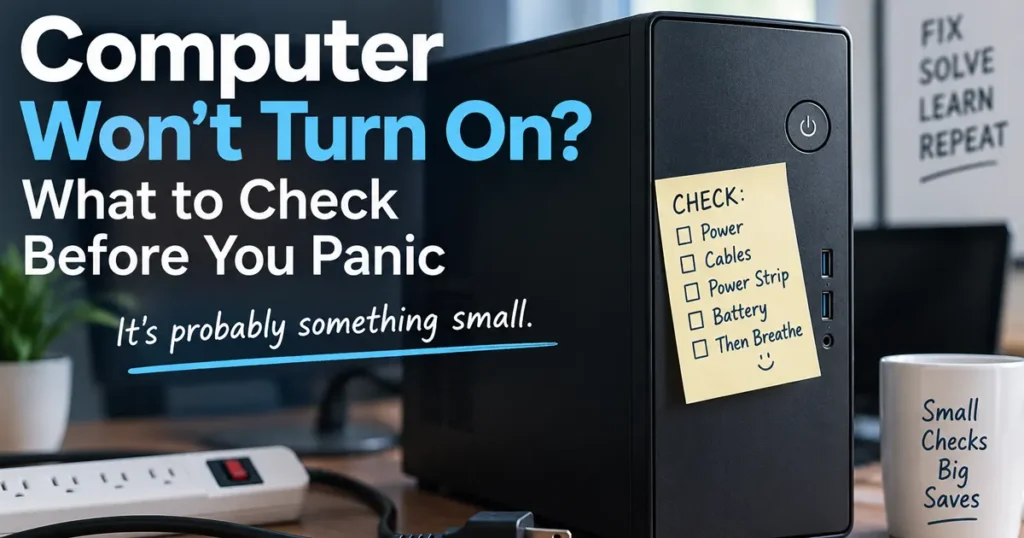
Picture the desktop in the corner of the den. It’s the one that holds everything: the kids’ first steps, every birthday, the trip to the Cape, scans of grandparents’ photos that only exist in one album. Somebody always meant to back it up. Then one morning you press the power button and nothing happens. Or it whirs, clicks, and quits.
That sinking feeling is real. But here’s the thing most people don’t know: the part of the computer that died is very often not the part that holds your photos.
A computer is a collection of parts. The power supply, the motherboard, the battery, the screen. Your files live on one specific part, the storage drive, and that drive frequently survives the failure that took everything else down. The question isn’t usually “are my files gone?” It’s “how do I get them off safely without making things worse?”
Quick answer: You can often recover files from a computer that won’t turn on, because the storage drive that holds your files is usually separate from the part that failed. The drive can be removed and read from another computer, or the computer can be repaired enough to copy the files off. If the drive is clicking, grinding or not detected, stop powering it on and don’t try home remedies; a physically failing drive needs professional handling, and every restart can make recovery harder.
Are my files gone if my computer won’t turn on?
Usually not. When a computer won’t power on, the most common culprits are things like a failed power supply, a dead battery or charger, or a motherboard problem. None of those erase what’s stored on the drive.
Your files are only truly at risk when the drive itself is the thing that’s failing. Even then, a lot can often be saved if the drive is handled carefully from the start.
Before anything else, rule out the simple stuff. Our guide on what to do when your computer won’t turn on covers outlets, power strips, cables and laptop batteries. Sometimes the “dead” computer just needs a working outlet.
How can I get files off a computer that won’t start?
There are three common routes, from simplest to most involved:
- Fix what failed, then copy the files. If it’s a power supply or a charger, repairing that gets the computer running again, and you can back everything up right away.
- Remove the drive and read it from another computer. The drive goes into an external enclosure or adapter and plugs into a working machine by USB. If the drive is healthy, the files show up like any other external drive.
- Professional recovery for a failing drive. If the drive itself has problems, the job becomes about reading as much as possible, as gently as possible, before it gets worse.
A word of caution on route two. Many modern laptops have the storage soldered to the motherboard, and some drives are encrypted by default (BitLocker on Windows, FileVault on Macs). In those cases, pulling the drive isn’t an option or won’t work without the recovery key. If you have a Microsoft account, your BitLocker recovery key may be saved there, and it’s worth finding before anyone opens the computer.
What should I NOT do when trying to recover files?
This is the section that saves the most data. The instinct is to keep trying, and with a failing drive that’s exactly the wrong move.
- Don’t keep powering on a drive that clicks, grinds or beeps. Those sounds can mean physical trouble inside the drive. Each spin-up can do more damage, and the window for recovery can close.
- Don’t put the drive in the freezer. This old trick floats around online. On modern drives it risks condensation inside the drive, which is the last thing a damaged drive needs.
- Don’t tap, shake or drop it “to unstick it.”
- Don’t open the drive itself. The inside of a hard drive is extremely sensitive to dust. Opening one outside a specialist lab can make the data unrecoverable.
- Don’t install recovery software onto the same drive you’re trying to recover from. It can overwrite the very files you want.
- Don’t reset or reinstall Windows, even if a repair screen suggests it.
The single best thing you can do with a computer that holds irreplaceable files and won’t start properly: turn it off, leave it off, and talk to someone before you try again.
How do I know if the hard drive itself is failing?
The drive is a likely suspect when you notice any of these:
- Clicking, grinding or buzzing sounds from inside the computer.
- The computer powers on but says no boot device was found, or can’t find Windows.
- It was slowing down badly, freezing, or showing disk errors before it quit.
- Blue screens mentioning the drive or reading data.
- The computer was dropped, especially while it was running.
Solid-state drives (SSDs) don’t click, so they tend to fail more quietly. A computer that suddenly can’t find its drive, or turns files read-only, can be a sign of an SSD problem.
Can I recover data myself, or do I need a professional?
You can often do it yourself when the drive is healthy and the problem is elsewhere in the computer. If you’re comfortable removing a drive, a USB enclosure and a second computer may be all you need.
You need help when the drive is making noise, isn’t detected, is soldered in or encrypted, or when the files are irreplaceable and you’d rather not take chances. Some physically damaged drives need a specialist lab with equipment for opening drives safely. A good local shop will tell you honestly when that’s the case instead of experimenting on your only copy.
How do I make sure this doesn’t happen again?
Keep more than one copy of anything you’d be heartbroken to lose. A common rule of thumb is three copies, on two different kinds of storage, with one kept somewhere other than your house, such as a cloud backup. An external drive plus a cloud backup covers most families well. Test it once in a while by actually restoring a file.
How can Systems Analysis help recover your files?
If your computer won’t start and you need what’s on it, stop there and call us. Systems Analysis Services has been fixing computers in Newton since 1978, and our data recovery service handles computers that won’t start, failing drives and accidentally deleted files. We diagnose first, explain in plain language what can and can’t be saved, and copy your files somewhere safe. If the computer itself is worth repairing, our computer repair team can take it from there. For offices, our backup and disaster recovery service helps make sure the next failure is an inconvenience, not a crisis.
Families and businesses across Greater Boston can call 617-965-4615, Monday to Friday 9am to 5pm, or call after hours for emergencies. You can also send us a message.
Frequently Asked Questions
Can you recover files from a computer that won’t turn on?
Often, yes. The storage drive that holds your files is usually separate from the part that failed, so the files can frequently be copied off by repairing the computer or reading the drive from another machine.
Should I put a failing hard drive in the freezer?
No. The freezer trick is an old myth that can cause condensation inside the drive and make things worse. If a drive is clicking or not detected, turn it off and have it looked at instead.
Can I take the hard drive out and plug it into another computer?
Often you can, using a USB enclosure or adapter, if the drive is healthy and removable. Many newer laptops have storage soldered to the board or encrypted by default, which makes this approach harder or impossible without help or a recovery key.
My hard drive is clicking. What should I do?
Turn the computer off and stop using it. Clicking can mean physical damage inside the drive, and running it more can make recovery harder. Some damaged drives need a specialist lab, so get an honest assessment before trying anything else.
Need a hand with this? Systems Analysis Services in Newton, MA can help.
Call 617-965-4615 or send us a message.