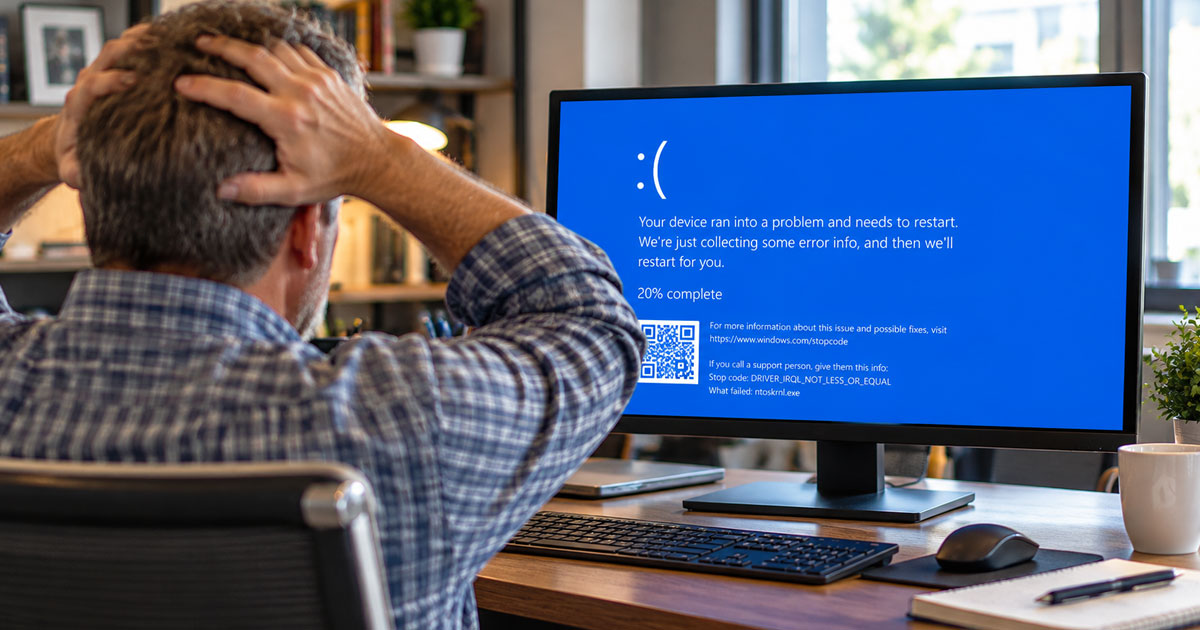
You’re three slides into the presentation. The room is quiet, the projector is warm, and you’re finally hitting your stride. Then the screen turns blue. A big sad face, a sentence about your PC running into a problem, a percentage counting up, and a line of capital letters joined by underscores that looks like a password nobody would choose.
Everyone in the room has seen it before. That doesn’t make it less embarrassing, and it doesn’t tell you whether your computer just had a bad moment or is about to stop working altogether.
Here’s the good news: the blue screen of death is not a random insult from Windows. It’s a report. It tells you, in its own clumsy way, roughly what went wrong. Once you know how to read it, you’ll know whether to shrug, update something, or back up your files tonight.
Quick answer: The blue screen of death (BSOD) is Windows stopping itself on purpose because something went wrong that it couldn’t safely recover from, usually a faulty driver, a bad update, failing memory, or a failing drive. Write down the stop code and any “What failed” file name shown on the screen. A single blue screen after an update is often a software problem you can fix; repeated blue screens, especially with clicking, freezing or file errors, point to hardware and mean you should back up your files right away.
What is the blue screen of death?
The blue screen of death is Windows deliberately shutting down to protect itself and your data when it hits an error it can’t safely work around. Microsoft calls it a stop error, which is a more accurate name. Rather than keep running in a broken state and risk scrambling files, Windows halts, saves some diagnostic information, and restarts.
On some recent Windows 11 versions, Microsoft has changed the look to a plainer black screen without the sad face. Same idea, same stop codes, different paint.
What does the stop code on a blue screen mean?
The stop code is a short label for the category of problem Windows ran into. It isn’t a full diagnosis, but it narrows things down. A few you’re likely to see, in plain language:
- CRITICAL_PROCESS_DIED – a core part of Windows quit unexpectedly. Often software or corrupted system files, sometimes a failing drive.
- IRQL_NOT_LESS_OR_EQUAL or DRIVER_IRQL_NOT_LESS_OR_EQUAL – usually a driver (the software that talks to a piece of hardware) misbehaving.
- MEMORY_MANAGEMENT – often points at faulty RAM, though drivers can cause it too.
- KERNEL_DATA_INPAGE_ERROR – Windows couldn’t read something it needed from the drive. This one makes us think about the drive’s health.
- INACCESSIBLE_BOOT_DEVICE – Windows can’t reach the drive it starts from. Could be a setting, an update, or the drive itself.
- VIDEO_TDR_FAILURE – the graphics driver or graphics hardware stopped responding.
- WHEA_UNCORRECTABLE_ERROR – the hardware itself reported an error. Overheating, power, or a component on its way out.
Sometimes the screen also shows a “What failed” line with a file name ending in .sys. That’s gold. It usually names the specific driver involved, which tells you exactly what to update or remove.
What should I write down when I get a blue screen?
Take a photo with your phone before it restarts. If you can’t, write down:
- The stop code, the capitalized words with underscores.
- The “What failed” file name, if there is one.
- What you were doing when it happened: starting up, plugging in a projector, gaming, opening a particular program, waking from sleep.
- What changed recently: a Windows update, a new printer or dock, new software, a drop or a spill.
- How often it’s happening, and whether it’s getting more frequent.
That list is exactly what a technician asks first. Having it ready often turns a long diagnosis into a short one.
How do I fix a blue screen error myself?
If it happened once and the computer started normally afterward, try the low-risk steps first:
- Back up your important files. Do this before anything else, especially if the stop code mentions the drive or pages.
- Undo what changed. Unplug any new device. Uninstall software you added just before the crashes started.
- Run Windows Update, including optional driver updates, or get the latest driver from your computer maker’s support site.
- Roll back a bad update. If crashes started right after an update, Settings > Windows Update > Update history lets you uninstall recent updates.
- Check memory. Search the Start menu for Windows Memory Diagnostic and let it test your RAM on restart.
- Look at Reliability Monitor. Search for “reliability history” to see a timeline of crashes and what was installed around them.
If Windows won’t start normally at all, it will usually offer recovery options after a few failed starts, including Safe Mode and System Restore. Be cautious with “Reset this PC.” Depending on the choice you make, it can remove your apps and files.
Is a blue screen a hardware or a software problem?
It can be either, and the pattern tells you more than any single crash. Software is the more likely culprit when:
- It started right after an update, a new driver, or new software.
- It always happens doing the same thing, like plugging into one particular dock.
- The “What failed” line names a specific driver.
Hardware becomes the stronger suspect when:
- The stop codes change from crash to crash.
- You hear clicking or grinding, or files take forever to open.
- Memory Diagnostic reports errors.
- It crashes when the computer is working hard or running hot.
- It happened after a drop or a spill.
If it’s pointing toward the drive, stop experimenting. Every restart on a failing drive is another chance for it to get worse.
When should I call a pro about a blue screen?
Call when the crashes keep coming back, when your files are at risk, or when the computer won’t start at all. Repeated blue screens on a computer with irreplaceable files is a situation where it pays to stop and get help before trying more fixes.
Systems Analysis Services has been fixing computers in Newton since 1978, and blue screens are one of the problems we see most. Bring your stop code notes and we’ll start there. Our computer repair team diagnoses whether it’s software or hardware, our laptop repair page covers the most common laptop failures, and if the drive is the problem, our data recovery service focuses on getting your files off it first. If the computer has gone completely dark, our guide on what to do when your computer won’t turn on covers the safe checks.
Homes and businesses across Greater Boston can call 617-965-4615, Monday to Friday 9am to 5pm, or send us a message.
Frequently Asked Questions
Is the blue screen of death serious?
Sometimes. A single blue screen after an update is often a software problem that’s easy to fix. Repeated blue screens, especially with changing stop codes or signs of a failing drive, can mean hardware trouble, so back up your files and have it checked.
Can a blue screen delete my files?
The blue screen itself is Windows stopping to protect your data, so it doesn’t usually delete files. But the cause, such as a failing drive, can put your files at risk. If your files matter, back them up as soon as the computer is running.
What should I do if my computer keeps getting the blue screen?
Write down the stop code and any file name shown, then think about what changed before it started. Undo recent changes, update drivers, and test memory. If it keeps happening or Windows won’t start, stop restarting it and call a technician.
Can a blue screen be caused by overheating?
Yes. A computer that runs too hot can crash, often with hardware-related stop codes or when it’s working hard. Dust-clogged fans and blocked vents are common causes, especially on laptops used on beds or couches.
Need a hand with this? Systems Analysis Services in Newton, MA can help.
Call 617-965-4615 or send us a message.