
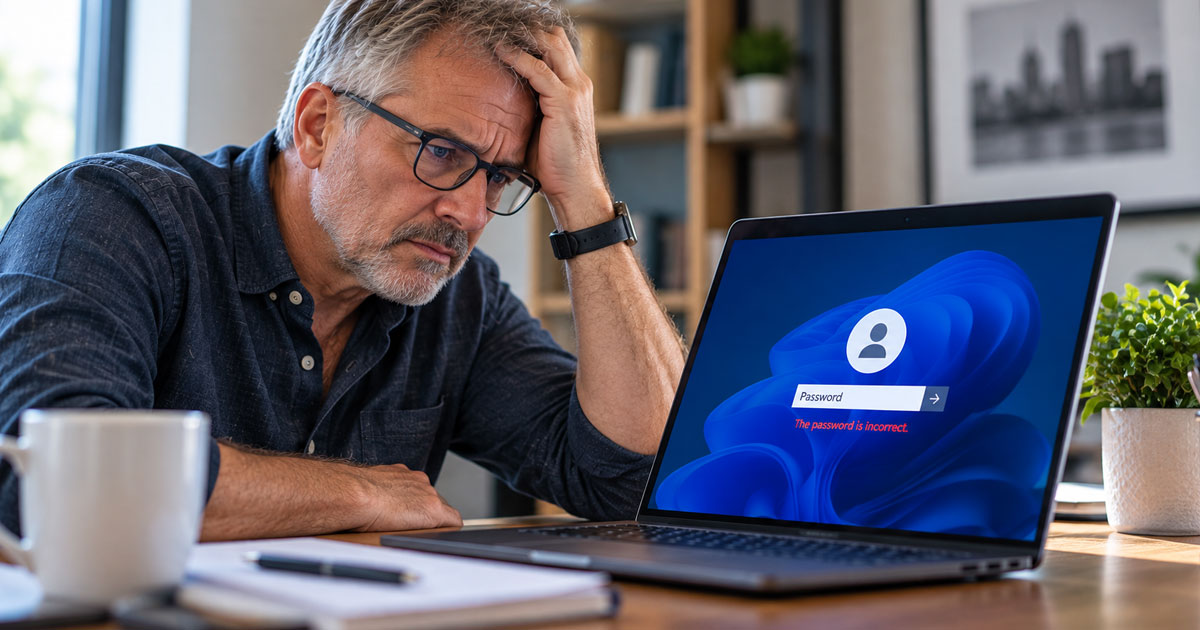
There’s a specific kind of frustration that comes with staring at your own login screen, typing the password you’re sure is right, and watching Windows reject it three times in a row. Maybe you changed it recently and your fingers are still typing the old one. Maybe a family member “helpfully” changed it and didn’t tell anyone. Either way, a forgot Windows password is one of the most common calls we get from Newton and Boston-area customers, and the good news is that it’s almost always fixable without losing any of your files.
What you need to do depends on one big factor: whether you sign in with a Microsoft account (an email address) or a local account (just a username, no email).
First, Figure Out Which Type of Account You Have
If your login screen asks for an email address, or something that looks like one, you’re using a Microsoft account. If it just asks for a plain username with no @ symbol, you’re on a local account. This matters because the recovery process is completely different for each one.
If You Sign In With a Microsoft Account
This is actually the easier case, because Microsoft account passwords are reset the same way as any other online account — from a different device.
- On your phone or another computer, go to account.live.com/password/reset.
- Choose “I forgot my password” and enter the email address you use to sign into your PC.
- Microsoft will send a verification code to your recovery email or phone number (whichever you set up when you created the account).
- Enter the code, set a new password, and it takes effect immediately — you can go straight to your locked computer and sign in with the new password.
The part that trips people up is not remembering which email or phone number they used for recovery years ago. If you genuinely can’t get a code sent anywhere, Microsoft has an account recovery form that asks a series of questions about your account history, but it can take a day or more to process.
If You Sign In With a Local Account
Local accounts don’t have a “forgot password” link because there’s no Microsoft server involved — the password only lives on your machine. This is where most people get stuck, because it feels like there’s no way in. There actually are a few legitimate paths, in order of how commonly they work:
Try a Password Hint First
Windows sometimes displays a hint you set up when you created the account. It’s easy to overlook if you’re stressed and typing quickly, so slow down and read the login screen carefully before assuming there’s no hint at all.
Check for a Second Administrator Account
If more than one person uses the computer, there may be a second account with administrator rights that can reset your password from inside Windows, under Settings, Accounts. This is common on family or shared computers where a spouse or older child was set up as an admin.
Use a Password Reset Disk (If You Made One)
Windows lets you create a password reset USB drive in advance, though almost nobody does this until after they’ve been locked out once. If you happen to have made one, plug it in at the login screen and Windows will walk you through resetting the password with it.
Built-In Recovery Tools Have Real Limits
Beyond those options, the remaining methods involve booting from installation media and using command-line tools to reset the account database directly. These work, but they carry real risk if you’re not familiar with them — a mistyped command can corrupt the user profile, and in some cases, third-party “password removal” tools sold online turn out to be bundled with adware or worse. We’d rather a customer bring the machine in than run something downloaded from an ad-supported site at 11pm out of desperation.
What We Do Differently
When a locked-out computer comes into our shop, we use recovery methods that reset access to the account without wiping your files, your installed programs, or your settings. That’s the part people worry about most — they’ve heard that “fixing” a password problem means starting over from a factory reset, and that’s simply not true in the vast majority of cases we see. We can also help you set up more reliable ways to sign in going forward, like a PIN or Windows Hello, which are far less likely to lock you out again.
If you’re staring at a login screen right now and none of the above got you back in, don’t reach for the factory reset option as a last resort — reach out to us first. We handle this for households and small offices across Newton and the greater Boston area regularly, and in most cases we can get you back into your own computer the same day, with everything still exactly where you left it. You can also see our other repair services on our computer repair page.
Frequently Asked Questions
Will I lose my files if I get locked out of Windows?
No, not from being locked out itself. Your files live on the hard drive independently of the login screen, and a proper password recovery doesn’t touch them. The risk of losing files only comes in if someone attempts a full factory reset as a shortcut, which is unnecessary in almost every password-related lockout.
How do I know if I have a Microsoft account or a local account?
Look at the login prompt. If it asks for an email address, it’s a Microsoft account and can be reset online from any device. If it only asks for a username with no email symbol, it’s a local account and requires a different recovery approach.
Is it safe to use free password reset software I find online?
Be cautious. Some legitimate tools exist, but this category is also heavily targeted by software bundled with adware, browser hijackers, or worse. If you’re not confident evaluating a download before running it on a locked machine, it’s safer to have a professional handle it.
Need a hand with this? Systems Analysis Services in Newton, MA can help.
Call 617-965-4615 or send us a message.